

Technology Support
Frequently Asked Technology Questions
- I have a technology issue. What should I do?
- Most technology issues can be resolved at the building where your student attends.
- Students should reach out to their teacher who will direct your child to the best path for a solution.
- Parents/guardians should reach out to the building secretary for the fastest resolution.
- Where do I fill out back to school forms or update important information for my child throughout the year?
- FinalForms to used streamline the process of completing and updating the required forms.
- How does ClassLink help my student?
- When students log into ClassLink, they do not need to log into other sites that are on their Student Dashboard like Google Classroom and apps, PowerSchool, and other classroom learning platforms.
- It can serve as a password locker for sites that cannot be configured for single sign on.
- How do students find their username and password for the PowerSchool Portal?
- Instructions for 8th-12th grade families
- Instructions for K-7th grade families and students
- What is the link to the PowerSchool parent portal?
- A PowerSchool button for parents and students lives on the district homepage
- Parents/guardians usernames is their email address
- Staff and student usernames do NOT include @hpsk12.net
- We encourage you to download the free PowerSchool and School Messenger apps.
How do I change my password?
- Parents/Guardians can reset their PowerSchool password by clicking the "forgot password" link on the PowerSchool log in page.
- All Staff and Students in grades 4-12 can change their own password if they set up password recovery questions in ClassLink.
- If a student needs their password reset, they can ask their teacher or librarian to reset it.
- Note: student credentials are used for all District accounts, such as ClassLink, PowerSchool, Google Classroom, and email.
How do I complete electronic forms and payments?
- Electronic forms are completed in FinalForms.
- Need help with FinalForms? Click the Get Help button located at the bottom of the FinalForms page.
- Electronic payments are made in the PowerSchool Parent Portal.
- Navigate to your student who has a fee.
- Menu bar > Forms.
- Follow the prompts to complete documents and/or pay fees.
- Electronic forms are completed in FinalForms.
- How do parents/students complete the back-to-school paperwork?
- Student information is updated in FinalForms.
What apps help me access my/my student's school information? We highly recommend downloading the free PowerSchool and School Messenger apps.
How does my student access their Google Classroom?
- Students are automatically rostered in Google Classroom.
- They can access from their ClassLink Launchpad or log into Google Classroom using their school credentials.
How do I access school email?
- Students in grades 5-12 have a school email.
- Students in grades 5-8 can only send and receive emails from users within the HPS domain.
- They can log into their Outlook email using their HPS credentials.
What to do I do if I get the error, "You do not have access to Gmail"?
- Students do not have Gmail accounts, so that error is valid.
- To access email, they need to log into Outlook.
How do I access Microsoft Office for my student?
Chromebooks
Please review the District's 1:1 Handbook that provides guidelines
- Taking care of District Chromebooks
- Troubleshooting methods
- How to get more help if the device still doesn't work after troubleshooting
- Potential fees to fix a device
If you are having trouble logging into the Chromebook, please review the Student Logins section.
You may also visit Google's Chromebook Help Page for specific questions.
If you are still having trouble with the Chromebook, please let your teacher know.
ClassLink
ClassLink Student Dashboard
Holt Public Schools uses ClassLink to provide students with secure, one-click access to the digital resources they use every day. The ClassLink Student Dashboard serves as a personalized launchpad, giving students access to district-approved applications such as Google Workspace, Microsoft 365, PowerSchool, and other classroom learning tools with a single set of credentials.
Whether learning at school or from home, ClassLink helps students spend less time logging in and more time learning. Teachers may also customize the dashboard by adding resources specific to their classroom.
Students in Grades 4–12
Students in grades 4–12 should configure Password Recovery in ClassLink at the beginning of each school year. This allows students to securely reset their own password if it is forgotten, reducing interruptions to learning.
If Password Recovery has not been configured, students will need to contact their teacher or school librarian for assistance with a password reset.
FinalForms
Holt Public Schools uses FinalForms to streamline the process of completing required forms. Families can use FinalForms to enroll new students, complete required back-to-school forms, register for athletics, and update important student information (such as emergency contacts, medical information, and household details) throughout the school year.
Keeping your student's information current in FinalForms helps ensure the District can communicate effectively and provide the best possible support for your child.
FinalForms Resources for Parents
Log into FinalForms before clicking on the linked resources below.
- Only one parent account is needed for all of your students.
- Need an account? FinalForms sent an email with an activation link.
- The New Account button is for families who are new to HPS and are enrolling their child.
- The FinalForms email address MUST be the same as the one in the PowerSchool Parent Portal.
- Have an account? Click the gray, 'Login' button
- Need an account? FinalForms sent an email with an activation link.
- Parents cannot add students to their own accounts. This is done by the district.
Need Language Translation?
Parents & Guardians can turn on language translation for their accounts.
- Click Parent Name in top right corner of a FinalForms page.
- Select Edit Profile.
- On the "Edit Parent" page check the box for "Enable Translation".
- Click the Update Parent button
- The Google Translator tool is at the bottom right of any FinalForms page. Click it to select the language of preference.
Need further assistance
Click the "Get Help" button located in the bottom right corner of any FinalForms page to receive support directly from FinalForms.
GoogleClassroom
Students log into Google Classroom using their HPS email address and password, the same one used to log into District-issued Chromebooks.
The Google Junior Training Series includes short videos on how to do just about anything with Google Classroom, such as Drive, Chrome, Docs, Slides, Sheets, and Drawings. Look through the videos to find the program and skills you are interested in learning.
Google Classroom for Students has written directions for navigating Google Classroom.
Google Classroom for Teachers has written directions for navigating Google Classroom.
To switch between multiple Google accounts Directions
ParentSquare
Parent Square Coming Soon!
We're excited to share that we’ve adopted a new communication platform, ParentSquare, to help us keep you better informed and more connected with your school community.With ParentSquare, you’ll receive all school and classroom messages in one place and translated into your preferred language—whether by email, text, app, web or phone. You’ll also be able to
- Receive messages from the school via email, text or app notification
- Choose to receive information as it comes or all at once with a daily digest at 6pm
- Communicate in your preferred language
- Comment on school postings to engage with your school community
- Direct message teachers, staff and other parents
- Participate in group messages
A Phased Rollout Starting in October 2026
Sycamore Elementary and Washington Woods Middle Schools will begin to use ParentSquare for school communication, primarily with email, text and app notifications. ParentSquare automatically generates an account for each parent, email addresses and phone numbers in PowerSchool. We encourage parents to access their accounts so they can download the mobile app and update their preferences on when and how they are notified.
Accounts
ParentSquare automatically generates an account for each parent, using email addresses and phone numbers in PowerSchool. We encourage parents to access their accounts, via a web browser or download the mobile app and update preferences on when and how you are notified.
Download the App
Android | iOS |
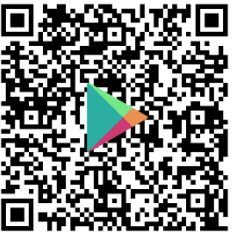 | 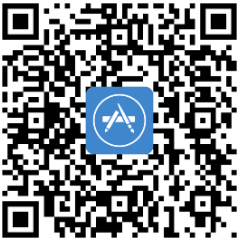 |
After downloading and installing the ParentSquare app on you phone, complete the following steps to register your account
- Open the ParentSquare App
- Enter your email or cell phone number (your contact information is imported from your ParentVue account - please ensure that it is correct)
- Tap Continue
- Enter your registration code sent by Email or Text and tap Continue.
- Create your password and confirm your password.
Training Resources
Learn how to establish and manage your account and settings. Whether you’re downloading the app, setting your notification preferences or learning how to send a message, you’ll find everything you need to make communication simple and seamless.
Emergency Alerts
Starting January 4, 2027, emergency alerts will also be sent through ParentSquare. To prepare for this, HPS will perform a district-wide test of the system on Friday, December 18, 2026. No action is required on your part for this test; however, if you do not receive the test message, please contact your child’s school to verify that your contact information is up to date in our records.
School Communications
All distict, school, and classroom communications will eventually come through ParentSquare as we complete our full rollout for the 2026-2027 school year.
Too Many Posts? Set Email, Text and App Notifications to Daily Digest
PowerSchool Info & Help
Students in grades 7 - 12 need to change their password before they can log into PowerSchool for the first time at the beginning of every school year. See the Student Logins dropdown.
School Email (Outlook)
HPS students have Outlook email accounts. Usernames and passwords are the same as the ones they use to log into
- Chromebooks
- ClassLink
- Google Classroom (username =full email address)
- PowerSchool (just username - do not include @hpsk12.net)
- All HPS educational platforms
Students in grades 5 - 12 have school email accounts. These are to be use Holt Public Schools purposes only.
- Students in grades 5-8 can only send and receive email from users within the HPS environment.
- Students in grades 9-12 can send and receive email messages from inside and outside of the
- HPS environment.
Please remember that use of your @hpsk12.net email needs to follow the Acceptable Use Policy. All emails (including deleted mail) will remain on HPS servers and are accessible if needed for investigation
purposes.
SchoolMessenger Communication
SchoolMessenger allows parents and guardians to personalize communications from a school building and district. The app is free and available online and in the Apple App and Google Play Stores.
- Change communication preferences
- Opt-into Push notifications - mobile only
- Text "Subscribe," "Opt in," or "Yes" to 67587
- Update SchoolMessenger contact info - add phone numbers, email addresses, and SMS text message numbers
- View the last 30 days of SchoolMessenger messages
- SchoolMessenger - Frequently Asked Questions
How to Sign up
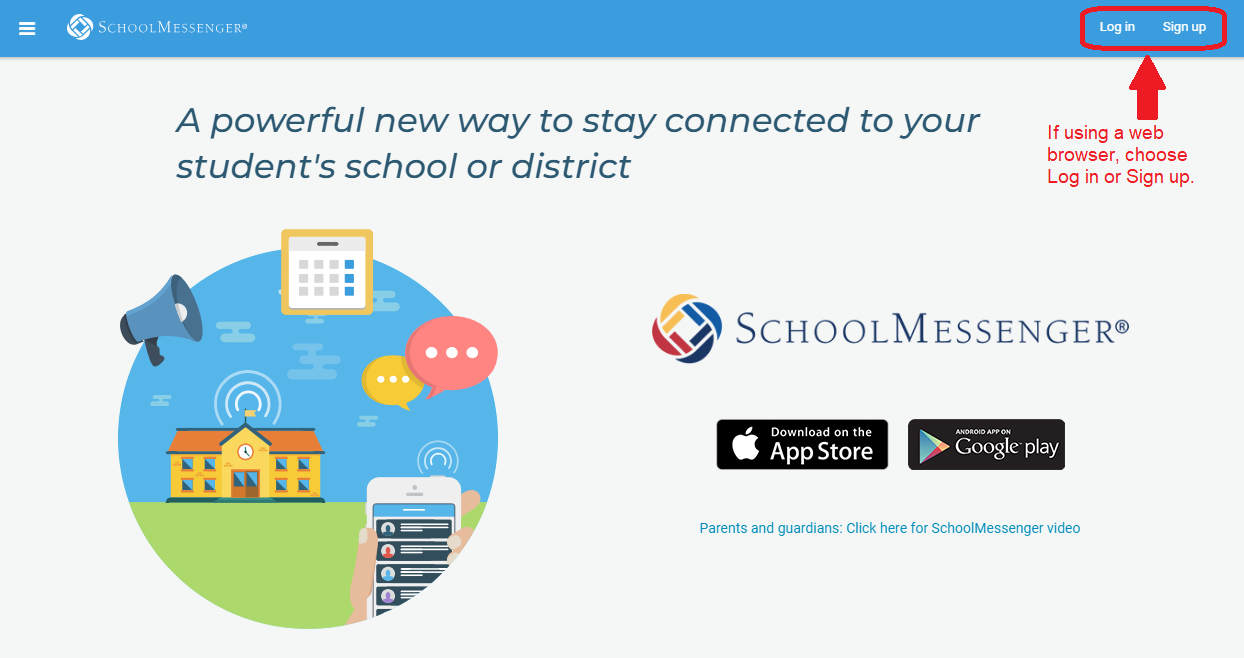
- On the School Messenger website, choose "Sign up" or download the app & click "Sign up"
- Enter your email address that is on file with the District
- Create a password
- Verify your email in your personal email account
- After authenticating via your email, return to SchoolMessenger and sign in using the email and password that was just verified.
- SchoolMessenger Parent Guide - Web App
- SchoolMessenger Parent Guide - Mobile App
Unsubscribing - NOT RECOMMENDED
When a user unsubscribes from any District communication, it unsubscribes that user from ALL District communication including messages from:
- Teachers
- Building Principals
- Superintendent Mr. Heard
- District
- Transportation info
- Snow day alerts
- Other emergency broadcast messages
Student Logins
Students in Grades K-3
Passwords are provided by their classroom teachers.
Students in Grades 4–12
Grades 4 - 7 will receive initial passwords from their classroom teachers. Grades 8-12 will continue using their existing password from the previous school year and will be prompted to reset it after Labor Day.
Student Password Requirements
Eight (8) character minimum
Must include at least one of each
Uppercase letter
Lowercase letter
Number
Special Character
Cannot include
Your name
Your username
The previous 5 passwords
Password Recovery Configuration, Grades 4-12
To enable self-service password resets, students should configure password recovery as soon as possible.
Students who need a new password and have not set up password recovery will need to contact their teacher or school librarian to have their password reset.
ClassLink
Holt Public Schools uses ClassLink as its single sign-on (SSO) platform, providing students with one secure login to access district-approved applications, including Google Workspace and other instructional resources. Students use the same ClassLink credentials on both Chromebooks and Windows devices. District-issued Chromebooks automatically open to the ClassLink LaunchPad after sign-in.
Backup Plan if ClassLink is Unavailable
Google Classroom & Google Apps
- Username: HPS email address (
username@hpsk12.net) - Password: Student-created password
- Username: HPS-assigned username (do not include
@hpsk12.net) - Password: Student-created password
Outlook (HPS Email)
- Username: HPS email address (
username@hpsk12.net) - Password: Student-created password
Technology Department
The Information Technology Department supports the tech needs of District staff, students, and families. Most technology questions can be answered in this portion of our website or by contacting the building where your student attends.
For questions about
- Getting a Chromebook > please contact your student's building principal.
- A teacher's Google Classroom or the tools within the Classroom > please contact your student's classroom teacher.
- Automated messages (phone calls, texts and email messages) > contact the secretary in the building where your child attends school.


